
About
Duo Display is an iOS app that turns your iPhone, especially iPhone Duo, into an extended display for your Mac. It is getting ready for the App Store. Your Mac needs the Duo Display Mac app (macOS 15 or later).
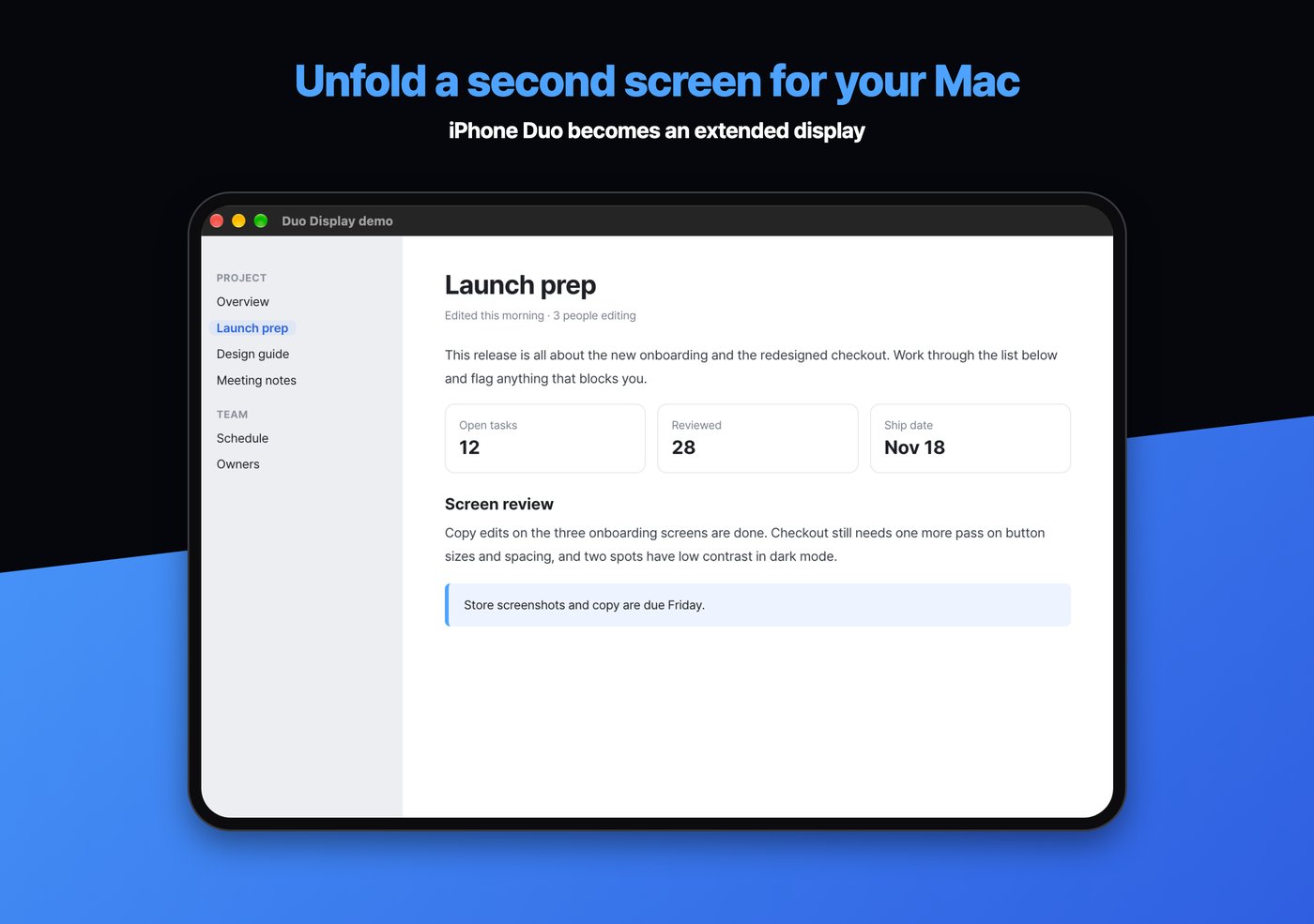
Unfold iPhone Duo and stand it next to your Mac, and you get a second screen you can drag windows onto. It works on other iPhones too, but it fits iPhone Duo best because its unfolded screen is the largest.
Features
- A real extended display — This is not mirroring. Your Mac sees a new monitor, and you can drag windows onto it
- Wi-Fi or cable — Your Mac shows up automatically when both are on the same Wi-Fi. A USB cable works too
- Fits as you fold — Unfold for the big inner screen, fold for the cover screen. Your Mac adjusts the resolution each time
- Retina sharp — Your Mac renders at 2x, so even small text stays crisp
Getting started
- Install and open the Duo Display Mac app on your Mac. An icon appears in the menu bar
- Open Duo Display on your iPhone. Allow local network access the first time
- Pick your Mac from the list on the same Wi-Fi, and you are connected. You can also plug in a cable
Download
Privacy
There is no account or sign-in, and the app does not collect, store, or transmit personal data. Screen video flows directly from your Mac to your iPhone inside the same local network (or over the cable) and never passes through an outside server. There are no analytics or advertising SDKs.
Support
If something is not working or you have a suggestion, email us.
Frequently asked questions
It will not connect
- Check that the Duo Display Mac app is running. Its icon should be in the menu bar
- Check that your Mac and iPhone are on the same Wi-Fi. Guest or public Wi-Fi often blocks device-to-device traffic. If a VPN is on, turn it off and try again
- On your iPhone, open Settings > Privacy & Security > Local Network and make sure Duo Display is on
- If it still fails, plug in a cable. A cable connects regardless of the Wi-Fi
What do I need
- iPhone: iOS 18 or later. It fits iPhone Duo best
- Mac: macOS 15 or later and the Duo Display Mac app
- Connection: the same Wi-Fi, or a USB cable
Why does it need Screen Recording permission
- The Mac app needs macOS Screen Recording permission to send your screen to the iPhone. It uses the permission only for that. It does not save the screen or send it anywhere else
- A permission prompt appears the first time you connect. If you missed it, open System Settings > Privacy & Security > Screen & System Audio Recording on your Mac and turn on Duo Display. You may need to reopen the Mac app afterward
Can I control my Mac by touching the iPhone
- Not in this version. It only shows your Mac screen. Touch control is planned for a future update